Viewer interaction and plugins#
The Genesis World viewer is the interactive window that shows a simulation as it runs. Beyond the built-in camera, recording, and visualization controls, you can extend it two ways: register keybindings to bind a key to a callback, and add viewer plugins that receive mouse and keyboard events, draw debug geometry each frame, and run logic on every simulation step. Plugins are the right tool for interactive tooling such as picking points on a mesh or dragging bodies with the mouse.
This page assumes a scene built with show_viewer=True (see Hello, Genesis World). The runnable examples live under examples/viewer_plugin/.
Minimal working example#
This scene adds the built-in MouseInteractionPlugin so you can click and drag the box, and binds Esc to quit. It shows the ordering that matters: add plugins before build(), register keybindings after.
import genesis as gs
import genesis.vis.keybindings as kb

gs.init(backend=gs.cpu)

scene = gs.Scene(show_viewer=True)
scene.add_entity(gs.morphs.Plane())
scene.add_entity(gs.morphs.Box(pos=(0, 0, 0.5), size=(0.2, 0.2, 0.2)))

# Plugins attach to the viewer at build time, so register them first.
scene.viewer.add_plugin(gs.vis.viewer_plugins.MouseInteractionPlugin())

scene.build()

is_running = True

def stop():
    global is_running
    is_running = False

# register_keybinds requires a built scene; call it after build().
scene.viewer.register_keybinds(
    kb.Keybind("quit", kb.Key.ESCAPE, kb.KeyAction.RELEASE, callback=stop),
)

while is_running:
    scene.step()
Keybindings#
A keybinding maps a key (optionally with modifiers) to a callback. Register one or more with scene.viewer.register_keybinds(), passing genesis.vis.keybindings.Keybind objects:
import genesis.vis.keybindings as kb

scene.viewer.register_keybinds(
    kb.Keybind("greeting", kb.Key.G, kb.KeyAction.PRESS, callback=lambda: print("Hello!")),
    kb.Keybind("quit", kb.Key.ESCAPE, kb.KeyAction.RELEASE, callback=stop),
)
register_keybinds requires a built scene. It raises if called before scene.build(). Register keys after building, as in the example above.
A Keybind takes a unique name, a key from the kb.Key enum, and a key_action:
kb.KeyAction.PRESSfires once when the key goes down.kb.KeyAction.HOLDfires repeatedly while the key is held.kb.KeyAction.RELEASEfires once when the key is released.
Pass key_mods=(kb.KeyMod.CTRL,) to require modifiers, and args / kwargs to forward arguments to the callback. Names must be unique; reusing a key with the same action raises unless you pass overwrite=True.
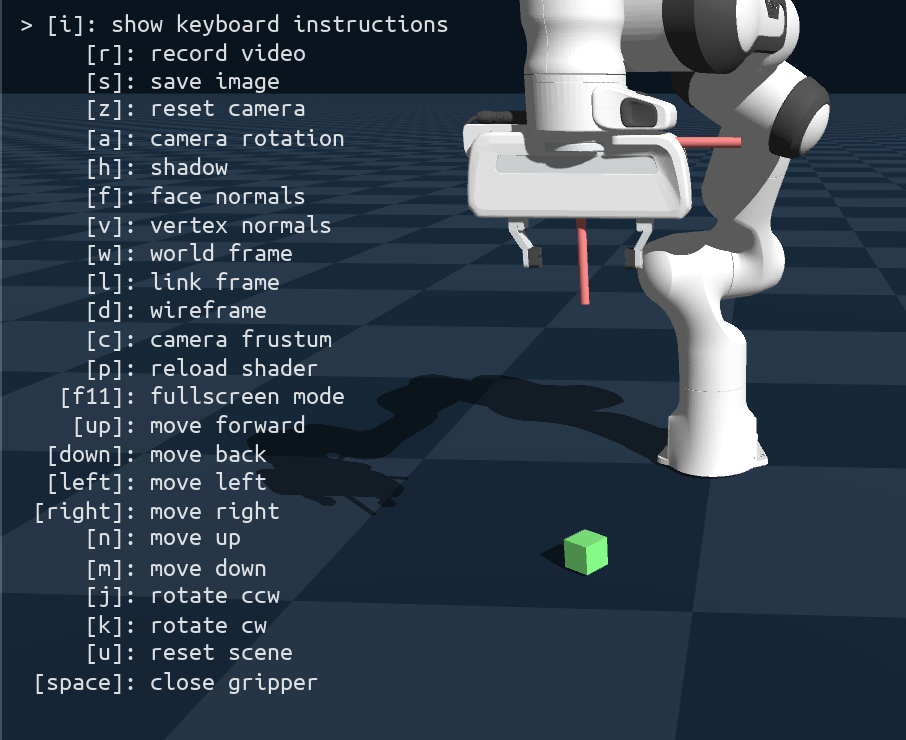
Registered keybindings appear in the viewer’s instructions overlay, so users can discover controls without reading the code. To hide that overlay or drop the default camera and recording shortcuts, set the corresponding ViewerOptions fields when creating the scene:
scene = gs.Scene(
    viewer_options=gs.options.ViewerOptions(
        enable_help_text=False,         # hide the instructions overlay
        enable_default_keybinds=False,  # drop the built-in viewer shortcuts
    ),
    show_viewer=True,
)
Viewer plugins#
A viewer plugin is an object the viewer calls back into as things happen. The viewer dispatches window events (mouse, keyboard, resize) to each plugin, calls it once per simulation step, and once per rendered frame. This lets a plugin maintain its own state, respond to input, and draw debug geometry, all without touching the render loop directly.
Add a plugin with scene.viewer.add_plugin(plugin) before scene.build(); the viewer calls the plugin’s build() hook once the scene is built. The built-in MouseInteractionPlugin is ready to use; anything more specific you write by subclassing ViewerPlugin.
Note
The ImGui overlay plugin (the entity browser, joint sliders, and simulation controls) is enabled with ViewerOptions(enable_gui=True) and documented on the Interactive GUI and debugging page.
Event handling and the interaction model#
Every event hook returns one of two things: EVENT_HANDLED (an alias for True) to consume the event, or None to pass it on. When a plugin consumes an event, later plugins and the default viewer controls do not see it. This is how a plugin claims, say, left-click for itself while leaving the scroll wheel to the camera. Return None for events you do not care about.
Subclass genesis.vis.viewer_plugins.ViewerPlugin and override only the hooks you need:
Method |
Called when |
|---|---|
|
Once, after the scene is built. Override to store references and set up state; call |
|
Mouse moved. |
|
Mouse moved with a button held. |
|
Mouse button pressed. |
|
Mouse button released. |
|
Scroll wheel moved. |
|
Key pressed. |
|
Key released. |
|
Window resized. |
|
Every |
|
Every rendered frame; issue debug-draw calls here. |
|
Once, when the viewer closes. |
After build(), self.viewer, self.camera, and self.scene are set, so a hook can read entity state or draw into the scene:
from genesis.vis.viewer_plugins import ViewerPlugin, EVENT_HANDLED, EVENT_HANDLE_STATE

class MyPlugin(ViewerPlugin):
    def on_key_press(self, symbol: int, modifiers: int) -> EVENT_HANDLE_STATE:
        if symbol == ord("x"):
            # ... handle the key ...
            return EVENT_HANDLED  # consume it; don't let the viewer also act on "x"
        return None

    def on_draw(self) -> None:
        # Debug geometry drawn here is cleared and redrawn each frame.
        self.scene.draw_debug_sphere((0.0, 0.0, 1.0), radius=0.05)
Dragging bodies: MouseInteractionPlugin#
gs.vis.viewer_plugins.MouseInteractionPlugin lets you click and drag rigid bodies. By default it moves a body toward the cursor with a spring force (use_force=True); pass use_force=False to set the body’s position directly instead. The full script, including the --use_force command-line flag and a multi-environment build, is examples/viewer_plugin/mouse_interaction.py:
scene.viewer.add_plugin(
    gs.vis.viewer_plugins.MouseInteractionPlugin(
        use_force=True,       # spring force; False sets position directly
        spring_const=1000.0,  # N/m, only used when use_force=True
        color=(0.1, 0.6, 0.8, 0.6),
    )
)
Screen-to-world rays: RaycasterViewerPlugin#
Click-to-select and drag-in-3D need a ray from the camera through the cursor. Subclass RaycasterViewerPlugin instead of ViewerPlugin: it builds a raycaster over the scene’s rigid geometry and gives you _screen_position_to_ray(x, y), which returns a Ray (origin and direction in the world frame). It also overrides update_on_sim_step() to keep the raycaster in sync as bodies move, so hits stay accurate while the simulation runs.
Cast the ray with self._raycaster.cast(*ray). A hit is a RayHit with distance, position, normal (all in the world frame), and geom, the RigidGeom that was struck; geom.link is the owning link:
from genesis.vis.viewer_plugins import RaycasterViewerPlugin, EVENT_HANDLED

class PickerPlugin(RaycasterViewerPlugin):
    def on_mouse_press(self, x: int, y: int, button: int, modifiers: int):
        if button != 1:  # left button only
            return None
        ray = self._screen_position_to_ray(x, y)
        hit = self._raycaster.cast(*ray)
        if hit is not None and hit.geom is not None:
            link = hit.geom.link
            world_pos = hit.position  # shape (3,), world frame
            # ... use the hit ...
            return EVENT_HANDLED
        return None
For a complete plugin built this way, see examples/viewer_plugin/mesh_point_selector.py. Its MeshPointSelectorPlugin (defined in that script, not part of the public API) raycasts on each click to select points on a rigid mesh, draws them as spheres in on_draw(), and on close writes them to a CSV in link-local coordinates. That last step is useful for finding local positions when placing sensors on an entity. It converts each world-space hit into the link frame so a selected point tracks the body as it moves:
# In on_mouse_press, after a hit:
link_pos = tensor_to_array(link.get_pos())    # world position of the link
link_quat = tensor_to_array(link.get_quat())  # (w, x, y, z), scalar-first
local_pos = gu.inv_transform_by_trans_quat(world_pos, link_pos, link_quat)
Debug geometry is drawn from on_draw(), which runs every frame. Call self.scene.clear_debug_objects() at the top and re-issue your draws so stale geometry does not accumulate. draw_debug_sphere, draw_debug_spheres, and draw_debug_arrow are the usual primitives. Register any mode-toggle or quit keys with scene.viewer.register_keybinds() so they show up in the instructions overlay alongside the defaults.
See also#
Interactive GUI and debugging: the ImGui overlay, joint sliders, and simulation controls.
Rendering: cameras, rendering, and recording video.