Hello, Genesis World#
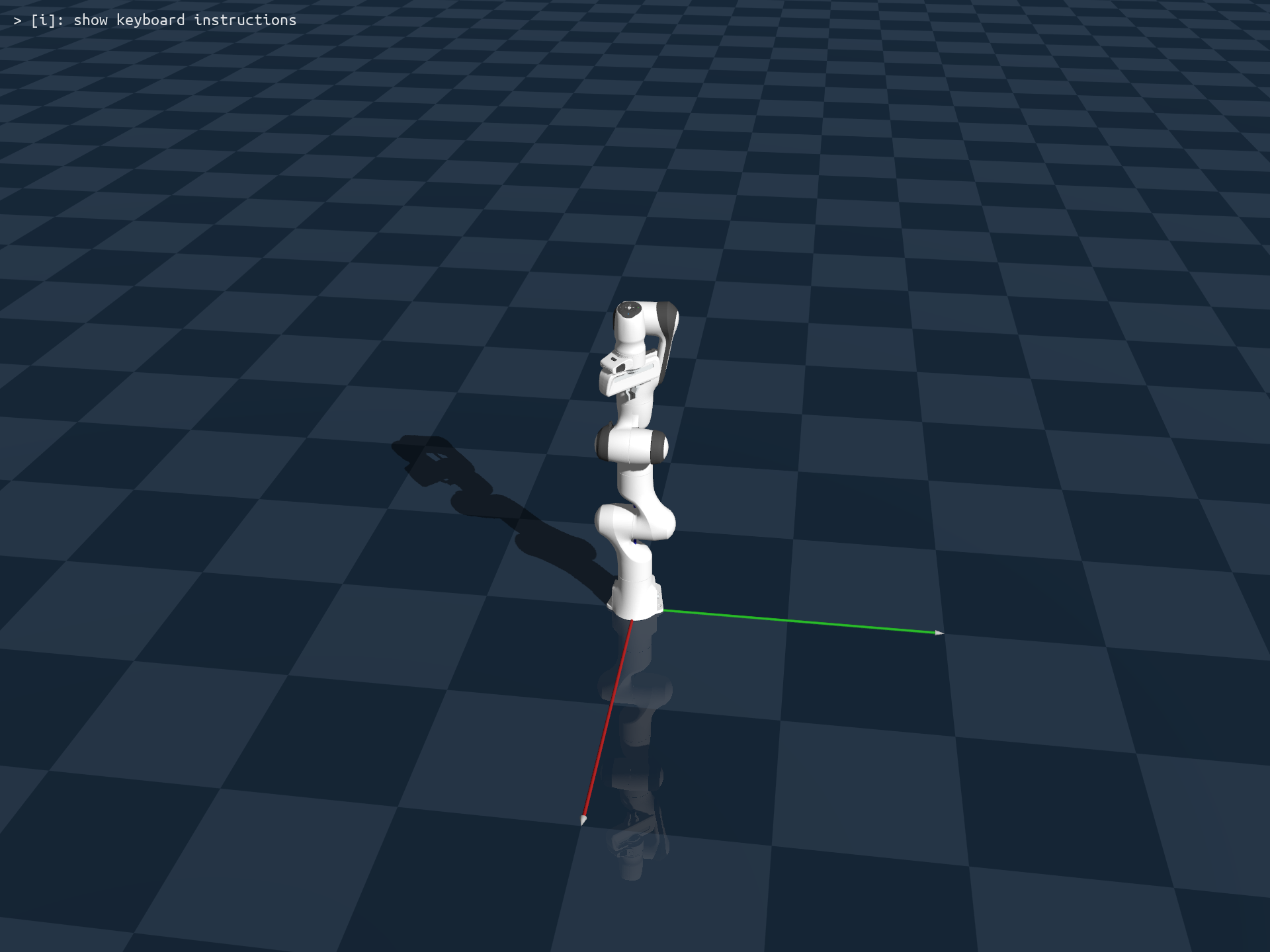
This tutorial builds the smallest complete Genesis World program: load a Franka arm above a ground plane and let it fall under gravity. It is under fifteen lines, and it already contains every step common to any Genesis World simulation: initialize, create a scene, add entities, build, and step.
The complete script is examples/tutorials/hello_genesis.py:
import genesis as gs

gs.init(backend=gs.cpu)

scene = gs.Scene()

plane = scene.add_entity(gs.morphs.Plane())
franka = scene.add_entity(
    gs.morphs.MJCF(file="xml/franka_emika_panda/panda.xml"),
)

scene.build()
for i in range(1000):
    scene.step()
The rest of this page explains what each step is for.
Initialize#
gs.init() must run once before you touch any other part of the API. Its most important argument is the compute backend:
gs.init(backend=gs.cpu)
Backend.
gs.cpuruns anywhere. For GPU-accelerated parallel simulation, usegs.cuda,gs.amdgpu, orgs.metal.gs.gpupicks the right one for your machine (CUDA where available, Metal on Apple Silicon).Precision. Genesis World uses 32-bit floats by default. Pass
precision="64"when you need double precision.Logging. On init, Genesis World logs system and version information. Set
logging_level="warning"to quiet it, andtheme="light"for light-background terminals.Performance mode. With
performance_mode=True, Genesis World bakes static tensor shapes into its compiled kernels for roughly 30% faster simulation, at the cost of recompiling whenever the scene changes (several minutes per change). Leave it off for research, debugging, and interactive work; turn it on for policy training and production runs.
For the full set of gs.init() arguments (backend selection and fallback, precision, seeding and determinism, logging, and environment variables), see Initialization and backends.
Create a scene#
Every object, robot, camera, and light lives in a scene (see the Scene API). A scene owns a simulator (the physics solvers) and a visualizer (everything you see):
scene = gs.Scene()
The default scene is headless. Pass show_viewer=True to open the interactive window, and use the options objects to configure physics and the camera:
scene = gs.Scene(
    sim_options=gs.options.SimOptions(dt=0.01, gravity=(0, 0, -10.0)),
    viewer_options=gs.options.ViewerOptions(
        camera_pos=(3.5, 0.0, 2.5),
        camera_lookat=(0.0, 0.0, 0.5),
        camera_fov=40,
    ),
    show_viewer=True,
)
Here dt is the simulation timestep in seconds, gravity points down along -Z, and the viewer options set the initial camera pose.
Add entities#
Objects and robots are entities. Genesis World is object-oriented: you interact with an entity through its own methods and attributes, not through a global handle or id.
The first argument to add_entity is a morph: a combined description of an entity’s geometry and initial pose. You can build a morph from a shape primitive or load one from a file:
plane = scene.add_entity(gs.morphs.Plane())
franka = scene.add_entity(
    gs.morphs.MJCF(file="xml/franka_emika_panda/panda.xml"),
)
Shape primitives include Plane, Box, Cylinder, Sphere, Terrain (see the terrain tutorial), and Drone. Supported file formats include:
gs.morphs.MJCF: MuJoCo.xmlmodelsgs.morphs.URDF: robot descriptions (.urdf, and.xacro, which is preprocessed automatically)gs.morphs.USD: Universal Scene Description (.usd,.usda,.usdc,.usdz); see the USD import tutorialgs.morphs.Mesh: non-articulated meshes (.obj,.stl,.glb,.gltf); see Conventions for Y-up vs. Z-up handling
A morph also accepts pose and scale. Orientation is either euler (SciPy extrinsic x-y-z, in degrees) or quat ((w, x, y, z)):
franka = scene.add_entity(
    gs.morphs.MJCF(
        file="xml/franka_emika_panda/panda.xml",
        pos=(0, 0, 0),
        euler=(0, 0, 90),
        scale=1.0,
    ),
)
File paths may be absolute or relative. Relative paths are resolved against your working directory and against the bundled asset directory (genesis/assets), so xml/franka_emika_panda/panda.xml loads the Franka model that ships with Genesis World.
Note
An MJCF file specifies the joint connecting the robot’s base to the world; a URDF does not. A URDF base is therefore free (a 6-DoF joint to the world) unless you pass fixed=True. The same applies to gs.morphs.Mesh.
Build and step#
scene.build()
for i in range(1000):
    scene.step()
scene.build() is a required, explicit step. Genesis World compiles GPU kernels just-in-time, so building is what allocates device memory, creates the simulation data fields, and triggers that compilation. With show_viewer=True, the viewer window opens once the scene is built. Each scene.step() then advances the simulation by one dt.
Note
Kernel compilation and caching. The first build with a new scene configuration (different robots, a different number of objects, anything that changes the internal data layout) compiles kernels on the fly, which is slow. Genesis World caches compiled kernels: as long as the first run exits normally or via Ctrl-C (not Ctrl-\), later runs with the same configuration load from cache and start quickly.
Next steps#
Continue with Control your robot to actuate the Franka you just loaded, then Visualization to work with the viewer and Rendering to capture images.