Parallel simulation#
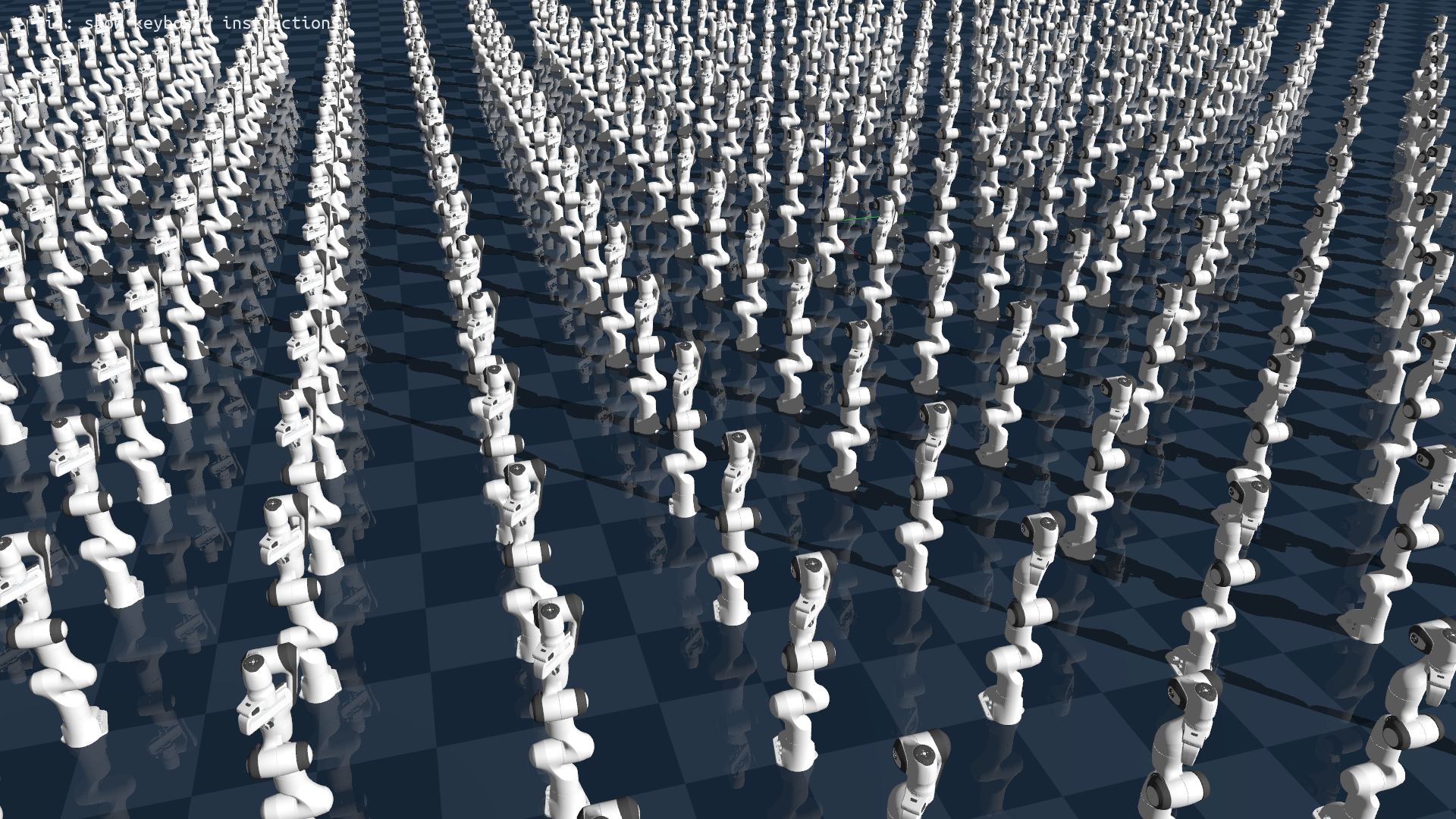
This tutorial shows how to run many copies of a scene at once on the GPU. Running environments in parallel is what makes Genesis World fast enough for reinforcement learning, where a policy needs millions of interaction steps: instead of stepping one environment at a time, you step thousands together in a single call.
The runnable script for this tutorial is examples/tutorials/parallel_simulation.py. This page explains the concepts behind it; run the script to see it in action.
Why parallelism matters#
A single environment cannot keep a GPU busy. A GPU has thousands of cores, and stepping one Franka arm leaves almost all of them idle. Genesis World closes that gap by simulating many identical environments at once, so the same physics kernels operate on a batch of states in one pass. The learning literature calls this batching; we use “environment” (env) for one copy of the scene and n_envs for the count.
The scene is defined exactly as in Hello, Genesis World: a plane and a Franka arm. Parallelism is not a property of the entities; it is turned on when you build the scene.
Building parallel environments#
Use gs.gpu as the backend so the batch runs on the GPU:
gs.init(backend=gs.gpu)
Everything else about scene creation and entity loading is identical to a single-environment scene. The one change is scene.build(), which takes the number of environments:
# create 20 parallel environments
B = 20
scene.build(n_envs=B, env_spacing=(1.0, 1.0))
n_envsis the batch size. Withn_envs=0(the default) the scene has no batch dimension; withn_envs > 0, a batch dimension of that size is prepended to every state you set or read.env_spacingis a(x, y)offset in meters used to lay the environments out on a grid in the viewer. It affects visualization only. The environments start from identical states, and the spacing does not change any entity’s simulated position.
The environments are independent: each has its own copy of every entity’s state, and stepping the scene advances all of them together with one scene.step() call.
Batched tensor shapes#
Once the scene is built with n_envs > 0, every per-environment quantity gains a leading batch dimension. Genesis World documents this with the bracket notation ([n_envs,] ...), where the bracketed dimension is present only when the scene is batched. For the Franka arm, which has 9 dofs (degrees of freedom):
q = franka.get_dofs_position() # shape ([n_envs,] n_dofs) -> (20, 9) here
The same rule applies to the commands you send. control_dofs_position expects a target of shape ([n_envs,] n_dofs), so to drive all 20 arms to the same joint configuration, tile a single 9-dof pose across the batch:
# control all the robots
franka.control_dofs_position(
    torch.tile(torch.tensor([0, 0, 0, -1.0, 0, 1.0, 0, 0.02, 0.02], device=gs.device), (B, 1)),
)
Because the simulation runs on the GPU, build these tensors directly on gs.device. gs.device is the Torch device Genesis World selected during gs.init(). Keeping data there avoids copying between host and device on every step, which is the dominant cost at large batch sizes. NumPy arrays also work, but incur that transfer.
Controlling a subset of environments#
To act on only some environments, pass envs_idx. The batch dimension of the command must then match the number of selected environments, not n_envs:
# control only 3 environments: 1, 5, and 7.
franka.control_dofs_position(
    position=torch.zeros(3, 9, device=gs.device),
    envs_idx=torch.tensor([1, 5, 7], device=gs.device),
)
The same envs_idx argument is available on the state-reading methods (for example get_dofs_position) and on the other control_dofs_* and set_dofs_* methods, so you can reset or query individual environments, the typical pattern when environments finish episodes at different times during training.
Scaling up#
Genesis World supports tens of thousands of environments on a single GPU. Turn off the viewer for headless throughput and raise n_envs; memory use grows with the batch, so reduce it if your GPU runs out of VRAM. To measure throughput on your own hardware, use the scripts in examples/speed_benchmark and see Profiling simulation performance.
Tip
Genesis World prints the real-time simulation speed (FPS) to the terminal by default. Disable it by setting scene.profiling_options.show_FPS = False when creating the scene.
See also#
Hello, Genesis World: the single-environment scene this tutorial parallelizes.
Control your robot: the full set of
control_dofs_*andset_dofs_*methods, all of which accept a batch dimension andenvs_idx.