

⌨️ Viewer Interaction#
The Genesis viewer supports mouse and keyboard interaction for camera controls, recording, visualization toggles, and more. This functionality can easily be extended with custom keybindings and viewer plugins.
Adding keybinds#
Register keybindings with scene.viewer.register_keybinds(...) before scene.build().
import genesis.vis.keybindings as kb

...

is_running = True

def stop():
    global is_running
    is_running = False

scene.viewer.register_keybinds(
    kb.Keybind("greetings", kb.Key.G, kb.KeyAction.PRESS, callback=lambda: print("Hello!")),
    kb.Keybind("quit", kb.Key.ESCAPE, kb.KeyAction.PRESS, callback=stop),
    # add as many keybinds as you want!
)
scene.build()

while is_running:
    scene.step()
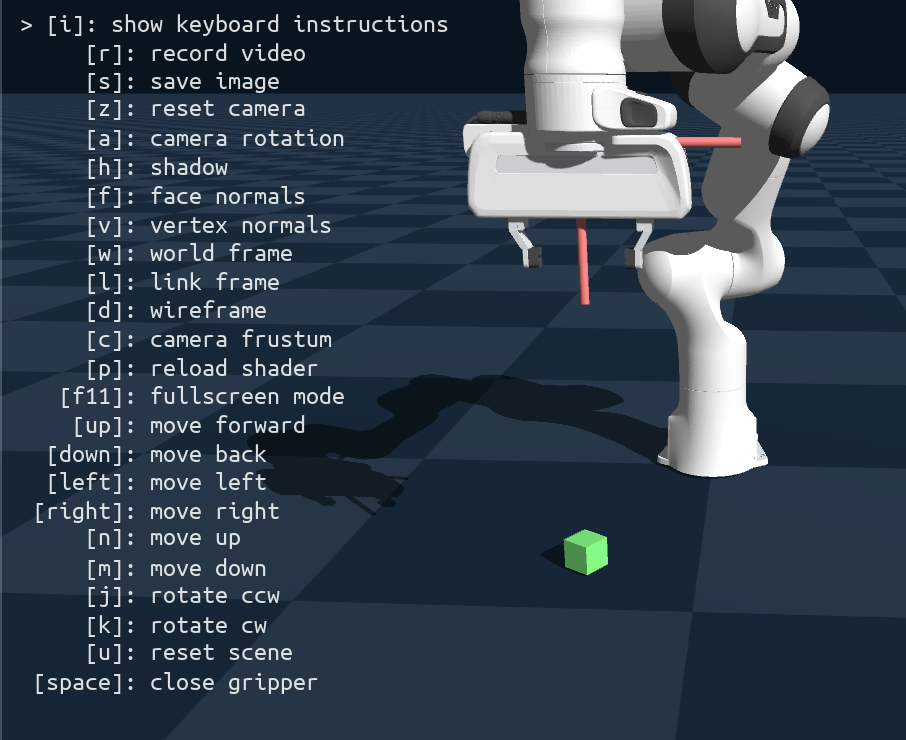
Registered keybindings are shown in the instructions overlay in the viewer so users can discover controls at a glance.
To disable default viewer controls and/or hide the help text, set the corresponding options when creating the scene:
scene = gs.Scene(
    viewer_options=gs.options.ViewerOptions(
        enable_help_text=False,         # hide the instructions text
        enable_default_keybinds=False,  # disable default viewer key shortcuts
    ),
    show_viewer=True,
)
Viewer Plugins#
Viewer plugins extend the interactive scene viewer with custom input handling and visualization. They receive mouse and keyboard events, can draw debug geometry each frame, and run logic on every simulation step-ideal for tools like picking points on meshes or dragging bodies with the mouse.
Add plugins with scene.viewer.add_plugin(plugin) before scene.build().
Example scripts are available under examples/viewer_plugin/.
Note
The ImGui Overlay Plugin (entity browser, joint sliders, sim controls, custom panels) is documented on the Interactive GUI & Debugging page.
Mouse Interaction Plugin#
The MouseInteractionPlugin lets you click and drag rigid bodies in the scene.
You can either move bodies by directly setting their position (default) or apply spring forces for a more physical feel.
The full example script is available at examples/viewer_plugin/mouse_interaction.py.
Use the --use_force flag to enable spring forces instead of position control.
scene.viewer.add_plugin(
    gs.vis.viewer_plugins.MouseInteractionPlugin(
        use_force=True,  # False = set position, True = spring force
        spring_const=1000.0,
        color=(0.1, 0.6, 0.8, 0.6),
    )
)
Custom plugins#
You can implement custom plugins by subclassing ViewerPlugin (or RaycasterViewerPlugin if you require screen-to-world raycasting) and adding them with scene.viewer.add_plugin().
ViewerPlugin base class#
Custom plugins subclass gs.vis.viewer_plugins.ViewerPlugin.
The viewer calls build(viewer, camera, scene) after the scene is built; override it to store references and set up state.
Event hooks return EVENT_HANDLED (or True) to indicate the event was consumed, or None to let other plugins or the default viewer handle it.
Method |
Description |
|---|---|
|
Mouse moved |
|
Mouse dragged with button held |
|
Mouse button pressed (called once on initial press) |
|
Mouse button released |
|
Mouse scroll wheel |
|
Keyboard button was pressed |
|
Keyboard button released |
|
Window resized |
|
Called every |
|
Called each frame for custom drawing |
|
Called when the viewer closes |
from genesis.vis.viewer_plugins import ViewerPlugin, EVENT_HANDLED, EVENT_HANDLE_STATE

class MyPlugin(ViewerPlugin):
    def build(self, viewer, camera, scene):
        super().build(viewer, camera, scene)
        # self.viewer, self.camera, self.scene are set

    def on_key_press(self, symbol: int, modifiers: int) -> EVENT_HANDLE_STATE:
        if symbol == ord("x"):
            # do something
            return EVENT_HANDLED
        return None

    def on_draw(self) -> None:
        # e.g. draw debug geometry via self.scene.draw_debug_*()
        pass
RaycasterViewerPlugin and screen-space rays#
For click-to-select or drag-in-3D behavior you need a ray from the camera through the mouse position.
Subclass RaycasterViewerPlugin instead of ViewerPlugin; it maintains a raycaster and provides _screen_position_to_ray(x, y) that returns a Ray (origin and direction in world frame).
RaycasterViewerPlugin also overrides update_on_sim_step() so the raycaster stays in sync with the scene each step.
from genesis.vis.viewer_plugins import RaycasterViewerPlugin, EVENT_HANDLED

class PickerPlugin(RaycasterViewerPlugin):
    def on_mouse_press(self, x: int, y: int, button: int, modifiers: int):
        if button != 1:
            return None
        ray = self._screen_position_to_ray(x, y)
        hit = self._raycaster.cast(*ray)
        if hit is not None and hit.geom:
            link = hit.geom.link
            world_pos = hit.position
            # ...
            return EVENT_HANDLED
        return None
Use scene.viewer.register_keybinds() to register keys (e.g. quit, toggle modes); those keybindings are displayed in the viewer’s keyboard instructions overlay so users can easily discover them.
Example: Mesh Point Selector#
The MeshPointSelectorPlugin uses mouse raycasting to select points on rigid meshes.
Click to add or remove a point; selected points are shown as spheres and can be snapped to a grid.
On close, the plugin writes selected points (in link-local coordinates) to a CSV file, which is useful if needing to get local positions for placing sensors on an entity.
The full example script is available at examples/viewer_plugin/mesh_point_selector.py.
from genesis.vis.viewer_plugins import MeshPointSelectorPlugin

scene.viewer.add_plugin(
    MeshPointSelectorPlugin(
        sphere_radius=0.004,
        sphere_color=(0.1, 0.3, 1.0, 1.0),
        hover_color=(0.3, 0.5, 1.0, 1.0),
        grid_snap=(-1.0, 0.01, 0.01),  # -1 = no snap on that axis
        output_file="selected_points.csv",
    )
)
scene.build()