

📐 Conventions#
This page outlines the coordinate system and mathematical conventions used throughout Genesis.
Coordinate System#
Genesis uses a right-handed coordinate system with the following conventions:
+X axis: Points out of the screen (towards the viewer)
+Y axis: Points to the left
+Z axis: Points upward (vertical)
Quaternion Representation#
Quaternions in Genesis follow the (w, x, y, z) convention, where:
w: Scalar component (real part)
x, y, z: Vector components (imaginary parts)
This is also known as the “scalar-first” or “Hamilton” convention. When specifying rotations using quaternions, always provide them in this order.
Example#
# Quaternion representing a 90-degree rotation around the Z-axis
rotation = [0.707, 0, 0, 0.707]  # [w, x, y, z]
Gravity#
The gravitational force vector is defined as:
Gravity direction: -Z (pointing downward)
Default magnitude: 9.81 m/s²
This means objects will naturally fall in the negative Z direction when no other forces are applied.
Axis Conversion at Import Time#
Different 3D asset formats define (or omit) coordinate system conventions. Genesis allows you to define precisely rules to ensure consistency with its Z-up internal representation. The following sections describe how each supported format is handled.
Alignment with Blender Exporters#
Genesis’s asset import behavior is explicitly aligned with Blender’s default exporters settings. Blender is a common authoring tool for robotics and simulation assets, and its exporters apply well-defined axis conversions depending on the target format (for example, exporting from Blender’s internal Z-up space to glTF’s Y-up convention).
By mirroring Blender’s exporter behavior:
Assets exported from Blender using default settings import into Genesis with the expected orientation.
Users can rely on Blender’s preview and transforms without introducing format-specific workarounds.
Cross-format consistency (glTF, STL, OBJ, URDF-referenced meshes) is preserved.
Y-up ↔ Z-up Is Not a Single Convention#
There is no single, universal transformation that converts between Y-up and Z-up coordinate systems. In general, conversions between Y-up and Z-up are defined by 3×3 rotation matrices, and multiple valid matrices exist depending on how the remaining axes (typically forward and right) are mapped. Two assets can both be labeled “Y-up” yet differ in orientation if they choose different forward axes.
As a result, simply stating that an asset is “Y-up” or “Z-up” is not sufficient to fully define its spatial convention. The forward axis choice determines how rotation matrices are defined.
Genesis Convention#
Genesis adopts a specific and consistent Y-up ↔ Z-up mapping aligned with Blender’s exporter behavior. More precisely:
Blender’s internal coordinate system is Z-up. When exporting to Y-up formats, Blender allows you to specify any possible combination of Up and Forward vectors. Genesis adopts Blender’s default Y-up exporter configuration: Y-up, −Z forward. This ensures that:
Assets exported from Blender with default axis settings appear identical in Genesis
The chosen 3×3 rotation matrix is consistent across formats
Axis conversion behavior is predictable and reproducible
All references to “Y-up” handling in Genesis therefore refer to this specific Blender-aligned Y-up representation, not an abstract or ambiguous Y-up definition.
glTF (.gltf / .glb)#
In Genesis, glTF assets are always interpreted as Y-up. During import, Genesis automatically converts glTF meshes from Y-up to Z-up. This behavior is fixed and cannot be overridden, ensuring compliance with the glTF specification. After import, the resulting meshes are guaranteed to be in Genesis Z-up space.
Blender leaves the option to export a gtTF as Z-up, by unchecking the +Y-up option. However, Blender is unable to provide the option to reimport the asset correctly. Genesis does not support importing glTF exported as Z-up.
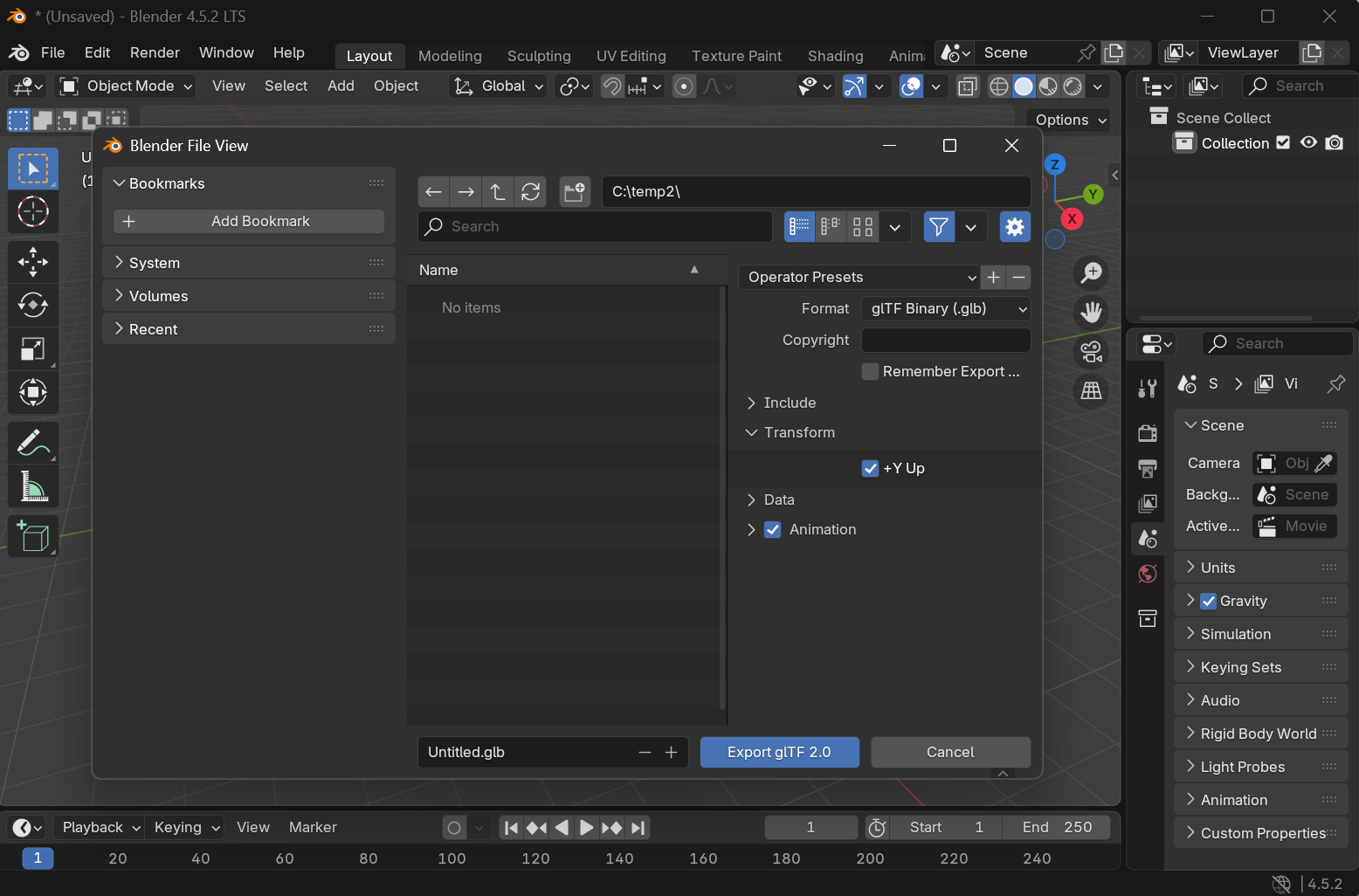
Blender GLTF exporter: https://docs.blender.org/manual/en/2.83/addons/import_export/scene_gltf2.html#transform
STL (.stl) and Wavefront OBJ (.obj)#
STL and Wavefront OBJ formats do not define a standard coordinate system. Therefore, the correct up-axis must be explicitly specified at import. As a result, assets authored in these formats may be either Y-up or Z-up, depending on the originating tool or pipeline. For STL and OBJ files, Genesis allows users to explicitly specify how the asset should be interpreted:
Z-up (default)#
The mesh is assumed to already be in Z-up space. No axis conversion is performed at import time.
Y-up#
The mesh is assumed to be authored in Y-up space and the Y-up → Z-up conversion described above is applied. This flexibility allows STL and OBJ assets from different sources to be imported correctly without modifying the original files.
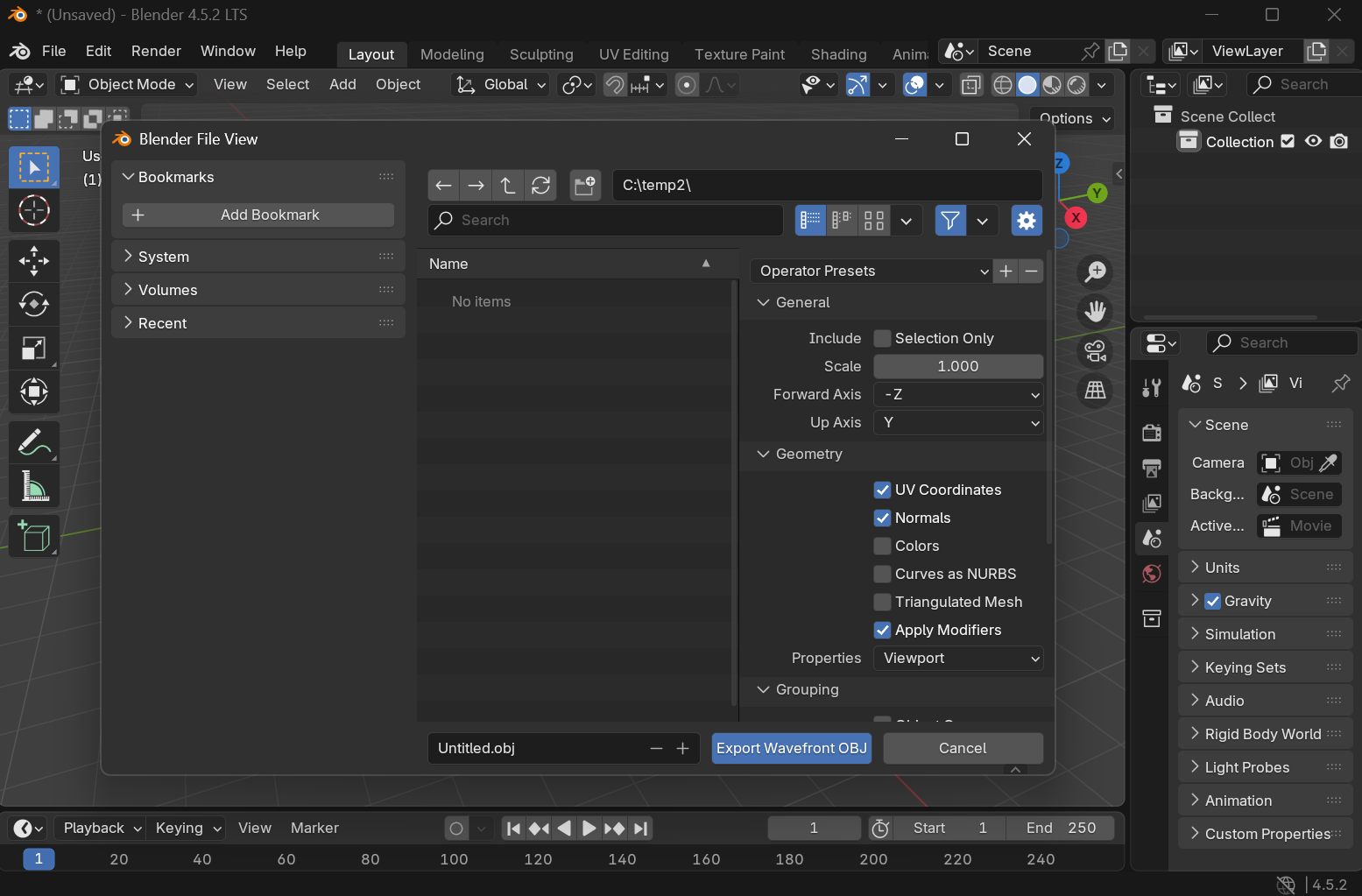
Blender’s Wavefront exporter: https://docs.blender.org/manual/en/4.0/files/import_export/obj.html#object-properties Blender’s STL exporter: https://docs.blender.org/manual/fr/3.6/addons/import_export/mesh_stl.html#transform
Importing assets correctly in Genesis#
In order to hint Genesis, a file_meshes_are_zup import option in the FileMorph class is available
obj_y = scene.add_entity(
    morph=gs.morphs.Mesh(
        file="my_obj_file.obj",
        # We are hinting Genesis that the meshes referenced by this file are
        # not in Z-up space and thus need to be converted at import time.
        # True = mesh is already Z-up; False = mesh is Y-up and needs conversion.
        file_meshes_are_zup=False,
    ),
)
After import, the morph will have a imported_as_zup flag that allows to know if a correction was done on the meshes:
obj_y.morph.metadata["imported_as_zup"]